

Barcode Fonts and Font Formulas for Crystal Reports
Generate barcodes with IDAutomation Barcode Fonts and the royalty-free Barcode Font Encoder Formulas.
Formula plus font
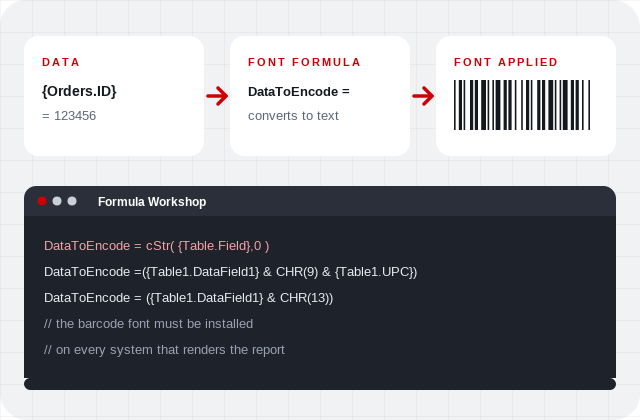
The formula converts the data into a special text string that displays as a barcode when the font is applied. Barcode font packages include the Crystal Font Formulas, with encoders for Excel, Access, SSRS, Java, .NET and other environments.
- Linear and 2D types: Code 128, GS1-128, Code 39, DataBar, Interleaved 2 of 5, UPC, EAN, Data Matrix, DotCode, MaxiCode, QR Code and PDF417
- Formulas work with Crystal Reports 9 and up
- No external dependencies except the barcode font
- Custom functions are available on request with a Developer license and Level 2 Support
Import the Font Formulas
- Purchase the barcode font package and run the setup EXE.
- Open the "Crystal Reports Formulas" example report from the program group, or the Crystal Reports Formulas folder in the Developer Tools ZIP.
- Switch to design mode (View - Design), select the formula field and copy it (Edit - Copy). Copy the separate text field formula too for human-readable text.
- Open the destination report, paste, select the object and choose Edit Formula.
- Rename each formula if several barcodes share a report, for example IDAutomation_C128_ClientData.
- Edit the data line, run the report, size the object to fit the full barcode and test a printed page with a scanner.
Formula examples
Use CHR(9) for a tab and CHR(13) for a return. Custom functions must be copied into each report that uses them.
DataToEncode = cStr( {Table.Field},0 )
DataToEncode =({Table1.DataField1} & CHR(9) & {Table1.UPC})
DataToEncode = ({Table1.DataField1} & CHR(13))

Function IDAutomationCode128 (DataToEncode as String) as String
  ... Existing Function Code ...
  IDAutomationCode128 = PrintableString
End FunctionFrequently asked questions
What are Font Formulas?
Font encoder formulas are saved in the report (.rpt) file and have no external dependencies except the required barcode font. IDAutomation suggests this method for distributed reports.
What do they cost to use?
The formulas are royalty-free and include complete source code. They are available with a Developer license or higher for the applicable font packages.
Which Crystal Reports versions work?
Crystal Reports 9 and up.
Why do I get a "string is required" error?
Barcode encoders require string data. Convert numbers and dates with cStr, for example DataToEncode = cStr( {Table.Field},0 ).
Where must the font be installed?
The barcode font must be installed on each system that generates the barcodes, and installed before adding the formulas so the barcode appears.
Choose a barcode font package
Fonts and encoders for Code 128, GS1-128, QR Code and more.