

Native Crystal Reports Generator Tutorial
The Barcode Integration Tutorial: copy the object into your report, set DataToEncode and verify.
Barcode integration tutorial
- Extract the package files and open the report for the needed barcode type.
Code 128 Auto (IDAutomation Native - Code 128 Auto.rpt) is the recommended default.
- Switch to Design view and locate the generator object in the Details section.
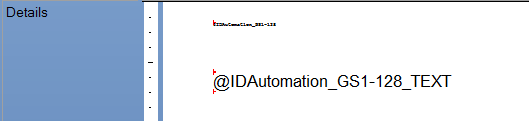
Copy the object with Edit - Copy or by right-clicking it and choosing Copy. For GS1 text interpretation, copy the related text object too.
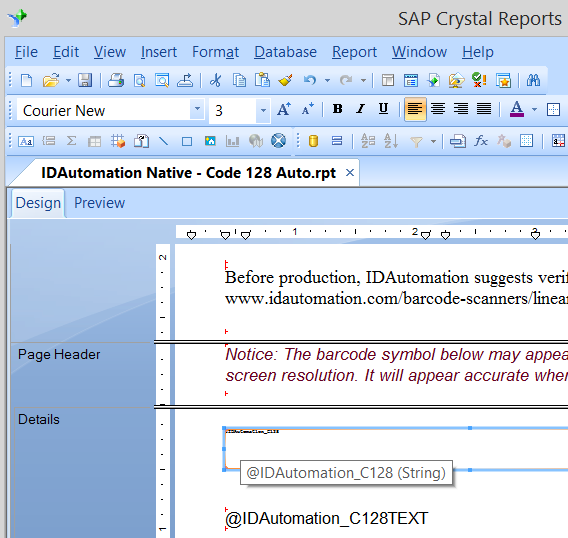
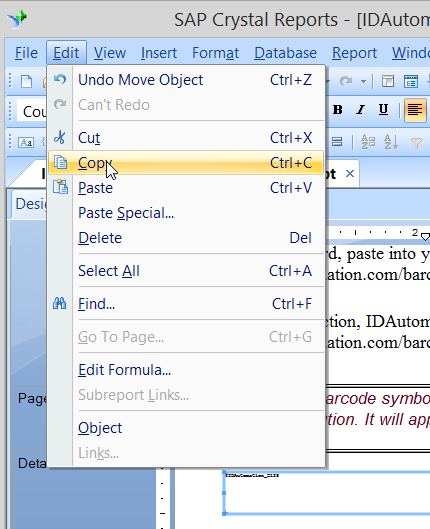
- Paste the object into the target report, then open Edit Formula.
Rename the formula if multiple barcodes share a report. GS1 barcodes paste with their text interpretation object, which displays the human readable text.
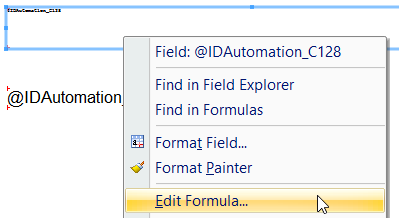
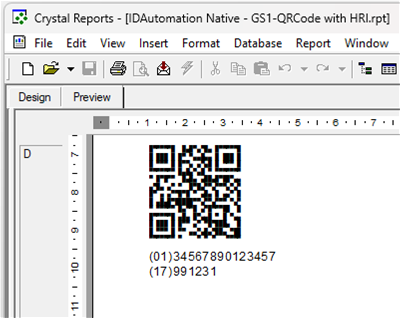
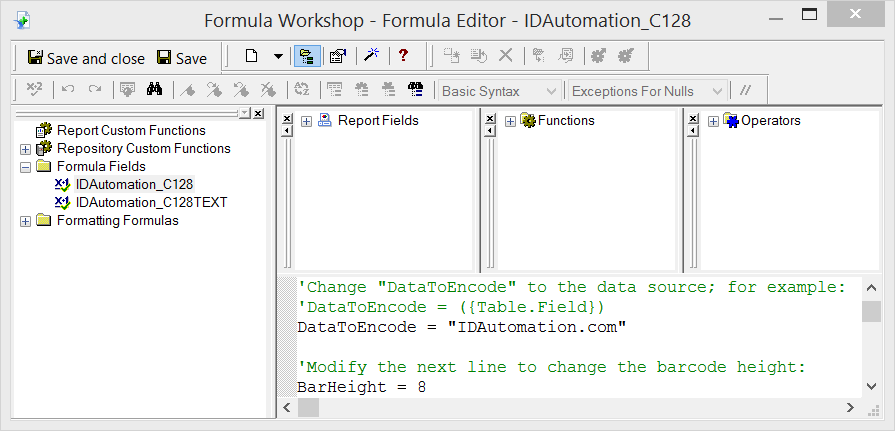
- Set DataToEncode to the data.
Optionally adjust the parameters below it. For linear barcodes, enlarge the object when increasing BarHeight. If you see "A string is required", wrap the field with cStr.
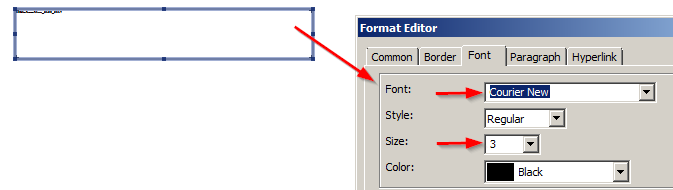
- Set the font point size.
It is usually 3 to 4 for Courier New. The font must be a mono-spaced Unicode font. Check object sizing, LEFT justification and non-bold text.
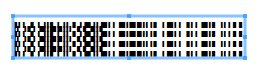
- Run the report and check the symbol fits its object.
Distortion appears when the symbol exceeds the object containing it.
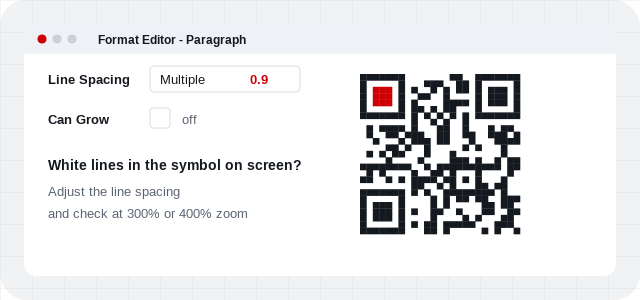
- Remove white lines on screen.
Adjust the point size, and set the paragraph line spacing as described in the troubleshooting section. Printed output is the accurate measure.
- Print and verify scannability.
Verify GS1, ASCII and UTF-8 encoding with the Barcode Decoder Verification App (opens in a new tab).
Formula syntax
Common DataToEncode formats from the user manual.
DataToEncode = cStr( {Table1_.FloatValueField},0 )
DataToEncode = "StaticData" & Chr(13) & ({Table.Field})
DataToEncode = "|SellerName|VNumber|DateTime|Total|VTotal"
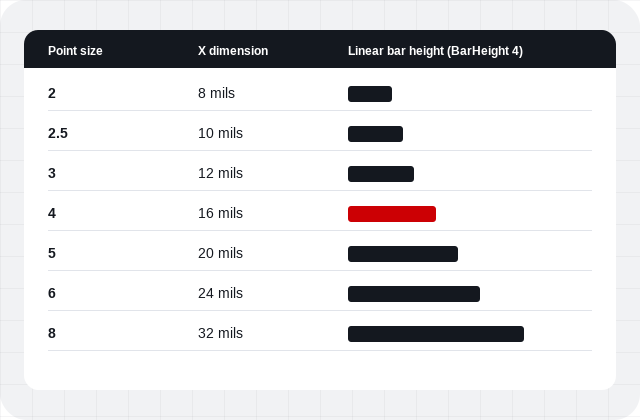
' linear height: Inches = Font Size x BarHeight x 0.015   CM = Font Size x BarHeight x 0.04
Tilde and ASCII codes
| Tilde code | Purpose |
|---|---|
| ~202 | FNC1 in Code 128 |
| ~1 | FNC1 in Data Matrix and QR Code |
| ~d??? | ASCII in Data Matrix and QR Code (three-digit code) |
| ~m?? | MOD10 check character (GS1) |
| ~f?? | MOD43 check character (HIBC) |
| ~CO | Center Override in QR Code |
Tilde processing is enabled with ApplyTilde or ProcessTilde. Chr() codes: 13 return, 9 tab, 30 RS, 29 GS, 4 EOT.
Common parameters and sizes
Linear bar height is set in 0.015 inch increments. 2D matrix symbols (Data Matrix and QR Code) have double the X dimension at a given point size.
- DataToEncode, BarHeight, N_Dimension, IncludeCheckDigit and ApplyTilde
- QR Code: Version, EncMode and ErrorCorrectionLevel
- PDF417: EccLevel, ColumnSpecify, RowSpecify and PDFTruncate
- Data Matrix: PreferredFormat and EncodingMode
Using Visual Studio?
The generator also works in ASP.NET Crystal Reports projects.