

Native Crystal Reports Barcode Generator in Visual Studio
Integrate a Crystal Report containing a QR Code with a Visual Studio ASP.NET website project.
Tutorial overview
The Native Barcode Generator for Crystal Reports may be integrated into several types of Visual Studio projects. This example uses Visual Studio 2022, Crystal Reports 35 and the IDAutomationQRCodeDEMO.rpt report.
- Visual Studio 2022 or later
- The Crystal Reports Visual Studio package from SAP, with the 64-bit Crystal Reports install
- Microsoft C++ 2013 Redistributable
- The demo contains static barcode data only; the licensed version is fully functional
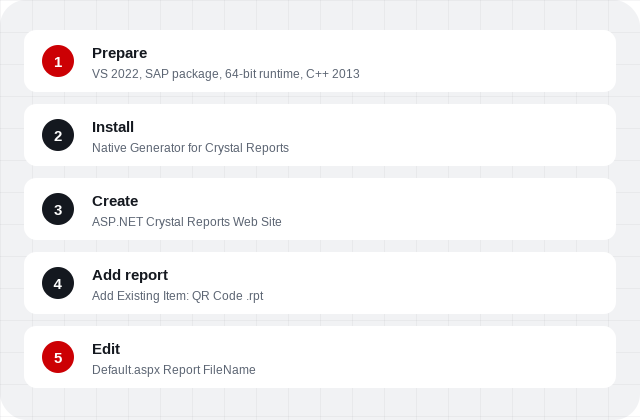
Step-by-step
- Prepare your environment.
Install Visual Studio 2022 or later, the Crystal Reports Visual Studio package from the SAP website with the 64-bit installation, and the Microsoft C++ 2013 Redistributable.
- Install the IDAutomation Native Generator.
Download and install the IDAutomation Native Reports Generator for Crystal Reports.
- Launch Visual Studio and create a new project.
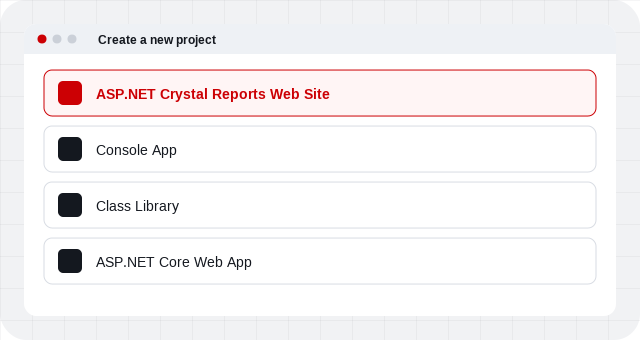
Select ‘ASP.NET Crystal Reports Web Site’, choose your framework and create. Launch the project with IIS and make sure it works before continuing.
- Add the QR Code report.
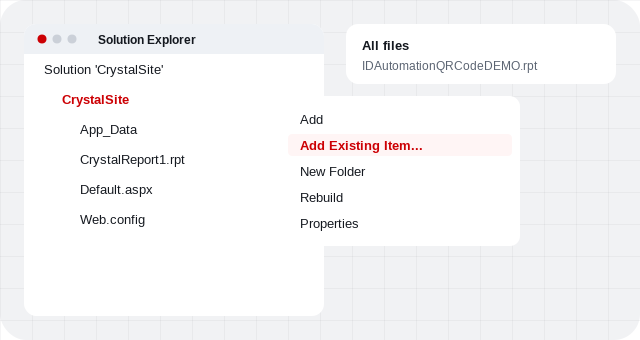
Right-click the project in Solution Explorer, select Add Existing Item, choose all files and locate the IDAutomation QR Code Demo Report. Edit the formula in the QR Code object to connect to the database field. Only licensed versions update data in the symbols from fields.
- Edit the Default.aspx file.
Replace Report FileName="CrystalReport1.rpt" with the name of the QR Code report, here IDAutomationQRCode.rpt. Launch the report in IIS and verify that it is generated.
Learn the formula parameters
Copy, paste and edit DataToEncode in the generator tutorial.